Documentation
Remote PLC access without port forwarding
Getting back online with a PLC installed on the other side of the country, without opening a single port: that is what remote PLC access with VIGIL-MESH delivers. Your engineering workstation behaves as if it were plugged into the workshop switch: TIA Portal, EcoStruxure Control Expert or Studio 5000 talk to the overlay address of the gateway serving the PLC — while the PLC's ports stay closed to the Internet.
Programming a PLC remotely, as if you were local
A program download, an online diagnosis, a variable to force: most PLC interventions do not require standing in front of the cabinet — they require being on the same network as the controller. That is exactly what the mesh does: it extends the machine network to your engineering workstation, under strict control.
Your tools, unchanged
TIA Portal, Control Expert or Studio 5000 connect by entering an address, exactly as they would for a controller on the local network.
Hands-on access without a site VPN
No VPN to have installed at the customer's, no account on their firewall: the gateway only makes outbound connections.
Compartmentalised by ACL
Every access is nominative: this technician, this gateway, this port. The rest of the network does not exist for them.
This page focuses on hands-on PLC access. The bigger picture — market gateway boxes, real LAN, scenarios — lives on Industrial remote maintenance.
The agent lives on a site gateway, never inside the PLC
Let us be precise, because this is the key point: the VIGIL-MESH agent does not install inside the PLC. It runs on an operating system — a Windows or Linux industrial PC, an NVIDIA Jetson, a Linux box — sitting on the same machine network as the controller. And often that machine already exists: it is the line's HMI or supervision PC.
- The PLC does not change: no firmware, no program, no network configuration. It stays within its perimeter, as validated by its manufacturer.
- PLC ports stay closed to the Internet: S7 (102/TCP), EtherNet/IP (44818), Modbus (502) are only reachable through the mesh, by the peers the ACL authorises, via the gateway.
- Access is machine by machine: no “subnet router” opening a whole /24 — each reachable device is reachable because a gateway serves it and a rule allows it.
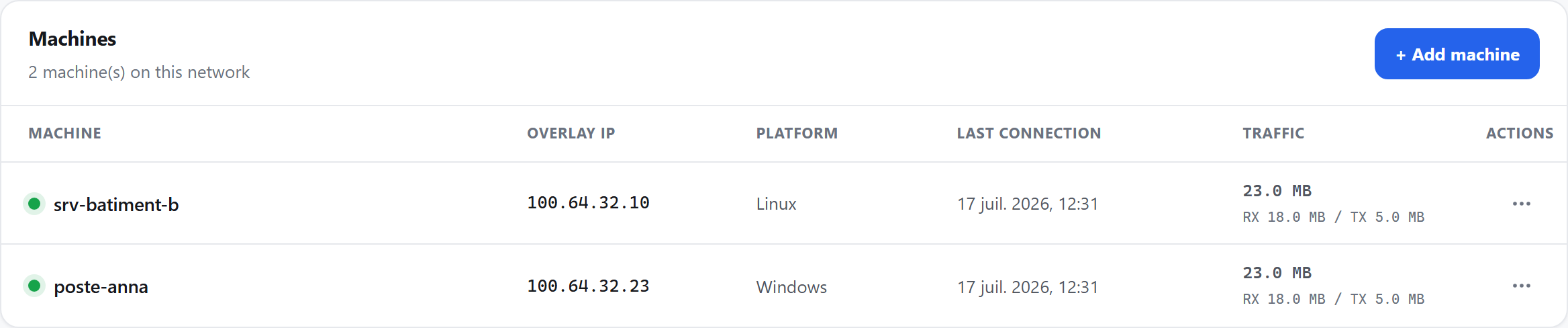
- The workshop gateway in the inventory — online (green dot).
- Its stable overlay address: that is what TIA Portal, Control Expert or Studio 5000 will target.
- Suspending or revoking the gateway immediately cuts all remote access to the workshop.
Siemens, Schneider, Rockwell: hands-on, step by step
- 1Enroll the machine-network gatewayAn industrial PC or Linux gateway in the workshop gets the agent, a stable overlay address and a MagicDNS name.
- 2Authorise the S7 flowWrite the ACL: your engineering workstation (or the automation group) to the gateway, port 102/TCP (ISO-on-TCP). Everything else stays denied by default.
- 3Target the address in TIA PortalWhen going online, enter the gateway's overlay address (or its MagicDNS name) rather than using “Accessible devices”, which relies on local broadcast.
- 4Download, diagnose, forceOnline view, hardware diagnostics, project download: the session behaves as if you stood at the cabinet, inside an end-to-end encrypted tunnel.
- 1Enroll the machine-network gatewayOften the supervision PC already in place: the agent installs there without touching the Modicon controller.
- 2Authorise ModbusACL: your workstation to the gateway, port 502/TCP. One rule, one service — nothing more.
- 3Set the address in Control ExpertIn EcoStruxure Control Expert (formerly Unity Pro): “Set Address”, TCPIP medium, with the gateway's overlay address.
- 4Connect and transferConnect, transfer the project, fine-tune: identical to an on-site session.
- 1Enroll the machine-network gatewayA Windows industrial PC or Linux gateway on the same network as the ControlLogix/CompactLogix controller.
- 2Authorise EtherNet/IPACL: your workstation to the gateway, port 44818/TCP (EtherNet/IP). Deny by default for everything else.
- 3Declare the station in RSLinx / FactoryTalk LinxCreate an “Ethernet devices” driver and add the overlay address to the station list — broadcast-based network browsing does not cross the overlay.
- 4Open Studio 5000“Who Active”, select the controller, download or go online — as if you were in the workshop.
- 1Enroll the machine-network gatewayThe same model applies to any IP equipment: drives, data gateways, HMIs.
- 2Authorise the exact serviceModbus TCP: port 502. OPC UA: port 4840 (opc.tcp). The ACL names the precise service, nothing more.
- 3Point the client at the overlay addressA Modbus client reads its registers at overlay-address:502; an OPC UA client connects to opc.tcp://magicdns-name:4840.
- 4For full supervisionSCADA, historians and multi-site collection: the supervision side is covered in Remote Modbus and SCADA access.
Security: least-privilege ACLs, audit, end-to-end encryption
- Deny by default: without an explicit rule, no flow passes. Rules name identities (machine, group, tag), never public addresses — see policies and ACLs.
- Least privilege: the automation group reaches the workshop gateway on port 102 — not the whole site, not the other customers.
- End-to-end encryption: every session travels over QUIC/TLS 1.3 on Ed25519 keys, with hybrid post-quantum key establishment; the relays (vigies) are structurally blind.
- Audit and revocation: accesses are logged; revoking a technician or a gateway cuts access immediately — at the end of a contract as well as during an incident.
Frequently asked questions
Do we need to install anything inside the PLC?
Will TIA Portal find the PLC with “Accessible devices”?
Are ports 102, 44818 and 502 visible from the Internet?
What if the site only has a 4G connection or sits behind CGNAT?
What latency should we expect for remote programming?
The same network that connects them lets each software announce its capabilities — and an MCP assistant see and operate them, under your control, machine by machine.
Read nextRemote Modbus and SCADA access →